How to check if your Google Ads conversion tracking actually works
Where to look in your own Google Ads account, what each conversion status means, and which settings decide what your report counts.
Log in to Google Ads and go to Summary within the Goals menu. Check three things: the status of each conversion action, which actions are set to Primary, and whether those Primary actions are real leads (calls of a set length, form submissions, bookings) rather than page views. Then make one test lead and see if it registers. If your agency can't explain each Primary action in one sentence, the lead numbers in your report don't mean much yet.
If you pay an agency to run Google Ads, "conversions" is probably the most important number in your monthly report, and the one you're least likely to have checked. This guide shows where they live in your account, what the labels mean, and which settings decide what gets counted. You need a login and about ten minutes.
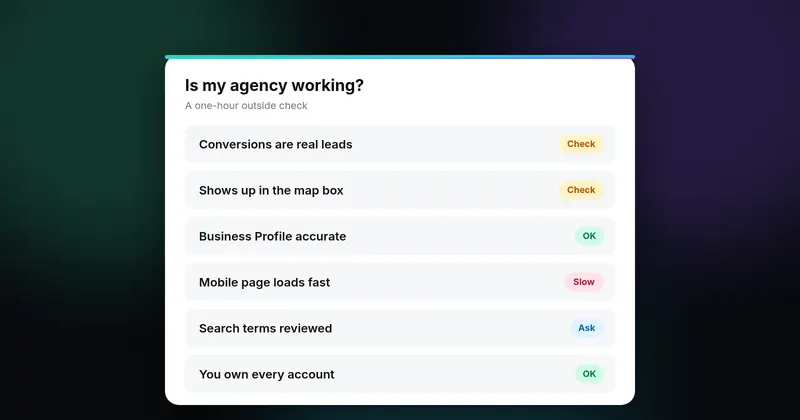
For the wider picture, see how to tell if your marketing agency is working. Google renames these screens often; this guide was last checked against Google's help pages on October 19, 2026.
What counts as a conversion is your decision
A conversion is whatever action you tell Google Ads is valuable. Google's examples are "a purchase, sign-up, or phone call" (About conversion measurement). Actions are grouped into goals such as "Purchases", "Contacts" and "Submit lead forms" (About conversion goals).
This matters because Google says the "Conversions" column "is generally used for bidding optimization" (Understand your conversion tracking data). With automated bidding, your budget follows whatever is counted there. The same page notes the column "may include modeled conversions," so it won't match your front-desk log call for call. Close is fine. Far apart is a question.
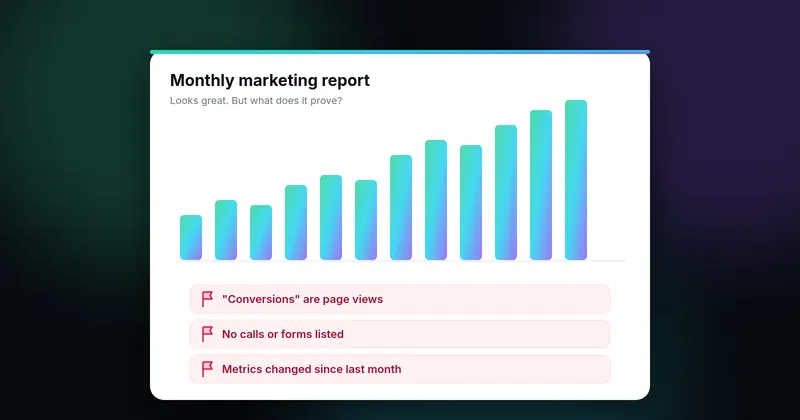
Why page-view "conversions" are a warning sign is covered in our red flags in agency reports.
Step 1: Get into the account yourself
Use your own login, not a shared one. Google Ads has five access levels: Email-only, Billing, Read-only, Standard and Admin, and only Admins can give access or change access levels (About access levels). To see who has which level, go to Access and security within the Admin menu (Manage access). Who should own the account long term is covered in our guide to switching agencies without losing accounts.
Step 2: Open the conversions summary
Go to Summary within the Goals menu. You'll see a table of every conversion action, with notifications at the top. Click a status to see its alerts (Troubleshooting conversion tracking status), or hover over it for more detail (Conversions summary help). Google's own troubleshooting steps start by setting the "Conversions" dropdown to "All conversions" (Tag Assistant guide). Do the same, then note each action, its status, and whether it's Primary.
Step 3: Read the status labels
Google is moving from older "Tracking status" labels to a newer "Status" column, so you may see either.
The newer labels. Google says, "You might not see all of these statuses in your account just yet" (Troubleshooting conversion tracking status):
- Active: "everything is working as intended."
- Needs attention: something needs fixing, but recording hasn't stopped entirely.
- Misconfigured: "Conversions have stopped recording entirely due to a setup error or a broken tag."
- Awaiting conversions: nothing recorded in the last 7 days, typically because the action is under 48 hours old, campaigns are paused, or traffic is low.
- Removed: deleted or archived.
The older labels. Many accounts still show Unverified, Tag inactive, No recent conversions, Recording and Inactive.
- Unverified or Inactive is "normal for new tags" and changes after the first conversion or a successful test (About conversion measurement).
- Recording means conversions are arriving. A freshly tested action shows "no recent conversions" until real ones come in (Tag Assistant guide).
- No recent conversions can mean no paid clicks converted in the last 7–14 days, which Google says "isn't always a tracking error" (Conversions summary help).
- Inactive or Needs attention often points to a misconfigured tag, a tag missing from the site, or an enhanced conversions problem, per the same page. After a tag change, allow 24–48 hours.
What should worry you: Misconfigured or Tag inactive on your main lead action. Raise it the same day. Awaiting conversions or No recent conversions in a busy season deserves a question, but Google lists ordinary causes for both.
Step 4: Check what's set to Primary
Primary actions feed the "Conversions" column and bidding, as long as their goal is used for bidding. Secondary actions are "for observation only": they show in "All conversions" and don't drive bidding unless they're in a custom goal (About primary and secondary conversion actions). Conversions created from Google Analytics events start as secondary and "can only be updated to primary in Google Ads," per the same page. And a Primary action only steers bidding if a campaign uses its goal; Google's own example shows a Primary action that "doesn't influence bid optimization for any campaigns" (About conversion goals).
The owner's test: for each Primary action, can you name the real event behind it, like a call over a set length, a quote form or a booking? Google advises keeping only "bottom-of-funnel actions" as Primary "to avoid inflating counts" (Understand your conversion tracking data), and warns against "Page view" actions set as Primary with values (Data discrepancies). If a page view, scroll or "visited contact page" action is Primary, ask why.
Also check the count setting. Google suggests "One" for leads and "Every" for sales; with "One," only one conversion counts per ad click (About conversion counting options).
If your agency uses Google Analytics conversions instead of a Google Ads tag, that's fine; Google supports it (GA key events as conversions). Just check they're set to Primary in Google Ads and that the same lead isn't also counted by a second tag.
Step 5: Don't let "All conversions" stand in for leads
"All conversions" adds secondary actions, store visits, certain phone calls and more to the "Conversions" figure, and view-through conversions appear only there and in their own column (About "All conversions"). It isn't your lead count. If your report's lead number matches "All conv.," ask what's inside it.
Step 6: Look closely at phone calls
For roofers, plumbers, HVAC companies and dentists, calls are often the main lead. Google Ads counts them five ways (About phone call conversion tracking):
- Calls from ads: from call assets, location assets or call-only ads. You set a minimum call length.
- Calls to a number on your website: a Google forwarding number shown to ad clickers. Again, you set a minimum length.
- Clicks on a number on your mobile site: Google can "only track these clicks, not the phone calls themselves."
- Clicks on call ads and assets: counted on Google's estimate of whether a meaningful call happened.
- Imported calls: from a system such as a CRM, so you can count only calls that led to sales.
Types 3 and 4 don't prove a call took place.
Check the default too. Once call reporting is on, calls are counted under "Calls from ads," which is "automatically included in your 'Conversions' column" (Measure calls from ads). Google can judge these calls by AI analysis of recordings (currently only where both parties are in the U.S. or Canada) or by a minimum duration you set. Call reporting uses a Google forwarding number, and turning it off "prevents Google Ads from tracking calls" (About call reporting).
Ask your agency what minimum length each call action uses and why. For repeat callers and recordings, see red flag #11.
Step 7: Run one test lead
In the summary table, hover over an action marked Unverified, Tag inactive or Needs attention and select Troubleshoot. Tag Assistant walks you through triggering it. Start from your home page or a landing page, not the thank-you page; results update in about 30 minutes (Tag Assistant guide). It can also share a debugging URL so someone else can debug for you (Troubleshoot with Tag Assistant), so your agency can test your main form while you watch. Use a name like "TEST – please ignore," and warn your front desk.
Then check tag health: in the Google tag settings, under "Tag quality," select View diagnostics. Statuses run from Excellent and Good to Needs attention, Urgent and No recent data. Urgent can mean a tag that was detected before hasn't been seen in 48 hours. Diagnostics can also flag "Only one administrator detected" or "Using legacy universal analytics tags" (Tag Diagnostics). Standard Universal Analytics stopped processing hits on July 1, 2023 (Analytics Help), but an old UA tag can still be what loads GA4. Here's how to check for Universal Analytics on your website.
What you can and can't tell from outside the account
Some tools, including our free mini-audit, read a website's code from outside. The Google tag goes on every page you want to track (Set up the Google tag). By itself it records page views for audience segments; specific actions like form fills are sent with an event snippet (Tag your website). A code-based Google Ads conversion carries 'send_to': 'AW-CONVERSION_ID/CONVERSION_LABEL' (Google tag for conversion tracking), and one tag can serve several Google products (About the Google tag).
From outside you can say "a Google Ads tag loads here" or "no conversion event fired when I sent the form." You can't say the account has no conversion tracking, because some setups leave little or nothing in the page code:
- URL-based conversions, detected by the Google tag "without adding any code to your website" (Set up your web conversions).
- Imported Google Analytics key events (GA key events as conversions), where the page may show only an Analytics tag.
- Calls from ads, tracked through a Google forwarding number. Google says some kinds of measurement "don't require a tag" (About conversion measurement).
Only the summary inside the account settles what's counted.
Enhanced conversions: one question to ask
Enhanced conversions add hashed first-party data, such as a form's email address, using SHA256. The "for leads" version is for sales that happen off the website from website leads (About enhanced conversions), like a quote form that becomes a booked job. Ask whether you use it, and if not, why not.
Your ten-minute checklist
- Log in with your own email.
- Open Summary in the Goals menu; set the dropdown to "All conversions."
- List every Primary action and confirm each is a call, form or booking.
- Hover over any status that isn't Active or Recording.
- Note each call action's type and minimum length.
- Check lead actions count "One."
- Compare last month's "Conversions" with your own lead count.
- Open Tag Diagnostics and note any Urgent status.
- In Access and security, confirm you're an Admin.
Questions to send your agency
- "Please send a screenshot of the conversions summary: every action, its status, Primary or Secondary."
- "What exactly triggers each Primary action?"
- "Which call types do we count, and at what minimum length?"
- "Can you run a Tag Assistant test on our main form while I watch?"
- "What changed in our conversion settings in the last 90 days?"
The bottom line
None of this assumes your agency is doing anything wrong, and a good agency will welcome clear questions. For an outside look at which tags load on your site, request a free mini-audit or send us a question. We'll tell you what we can see, and what only your account can answer.
Sources
- About conversion measurement (support.google.com)
- About conversion goals (support.google.com)
- Understand your conversion tracking data (support.google.com)
- About access levels in your Google Ads account (support.google.com)
- Manage access to your Google Ads account (support.google.com)
- Conversion Tracking: Troubleshooting conversion tracking status (support.google.com)
- Manage conversion goals from the conversions summary (support.google.com)
- Use Tag Assistant to troubleshoot your unverified or inactive conversion actions (support.google.com)
- About primary and secondary conversion actions (support.google.com)
- Data discrepancies: Factors and troubleshooting (support.google.com)
- About conversion counting options (support.google.com)
- Create Google Ads conversions based on Google Analytics key events (support.google.com)
- About "All conversions" (support.google.com)
- About phone call conversion tracking (support.google.com)
- Measure calls from ads (support.google.com)
- About call reporting (support.google.com)
- Troubleshoot with Tag Assistant (support.google.com)
- Troubleshoot tag issues with Tag Diagnostics (support.google.com)
- Google Analytics 4 has replaced Universal Analytics (support.google.com)
- Set up the Google tag with gtag.js (developers.google.com)
- Tag your website using Google Ads (support.google.com)
- Use the Google tag for Google Ads conversion tracking (support.google.com)
- About the Google tag (support.google.com)
- Set up your web conversions (support.google.com)
- About enhanced conversions (support.google.com)
Sources checked on October 19, 2026. Spot an error or an outdated link? Email james@agencyreferee.com and we’ll correct it.