Who should own your Google Ads account? Access levels explained for business owners
Google’s five access levels, what it means when a manager account is the owner, and how to check where you stand in your own account.
You should be an Admin on your own Google Ads account, signed in with a Google Account your business controls. Your agency can keep working through its own manager account at the same time. An agency's manager account can be your account's "owner" in Google's terms, but Google says your account still owns its data and can always unlink that manager. To check where you stand, sign in, go to Access and security within the Admin menu, read the Access level column, then open the Managers tab.
Your Google Ads account spends your money and holds the history of every campaign, keyword and conversion. This guide answers one question in particular: my agency won't give me admin access to my Google Ads account. Is that normal? Google renames these screens often; this guide was last checked against Google's help pages on October 21, 2026.
Two kinds of access: people and manager accounts
People. Each person signs in with their own Google Account and gets one of five access levels: "Email-only", "Billing", "Read-only", "Standard" or "Admin" (About access levels). Use a Google Account on an address your business controls, so access doesn't leave with one employee.
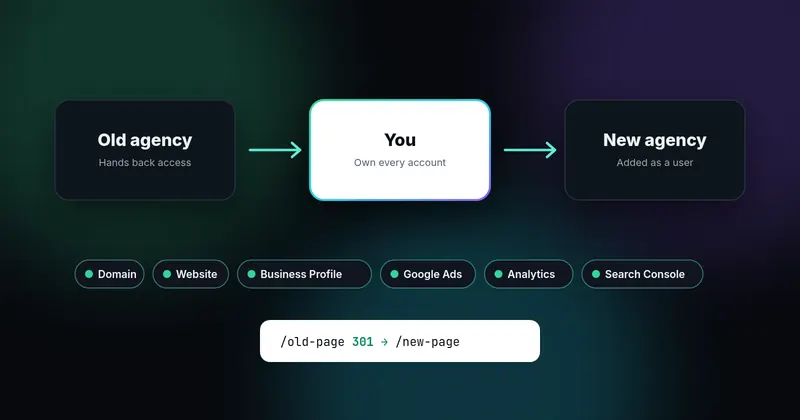
Manager accounts. Agencies usually work from a manager account linked to yours. Once your account accepts the link, "users with admin access to the manager account can receive notification emails and manage your campaigns." If that manager account also has ownership, its admins "can also edit user access, managers, and product links within your account" (About access levels).
The two don't compete. When an agency links its manager account to an account you already have, "the original client account remains unchanged and its account history remains intact," and it stays "accessible with the same sign-in information as before, and with the same permissions" (About linking accounts). An account "can't be directly managed by more than 5 manager accounts" (same page), so your Admin login and the agency's link sit side by side.
What each access level can do
Google's access table, in short (About access levels):
| Level | What it can do | Who it suits (our view) |
|---|---|---|
| Email-only | Receive notification emails and reports | Someone who only wants the emails |
| Billing | View and edit billing, run billing reports. Can't view campaigns | Your bookkeeper |
| Read-only | View campaigns, billing, users and managers; run reports. Can't edit campaigns or billing | Someone who should look, not touch |
| Standard | Read-only plus editing campaigns and billing. Can't give access or change access levels | Agency staff working in your account |
| Admin | Everything, including managing access, accepting or unlinking manager accounts and Advertiser Verification | You, plus one other person you trust |
The last column is our own suggestion, not a Google rule.
The powers you'd need to leave an agency, or to see who has been signing in, are Admin-only. Only an Admin "Can give account access, change access levels, and cancel invitations from other users," "Can unlink manager accounts" and "Can review each user's authentication method and last login time" (same page).
Google also warns that with a single admin "you may lose access to your tags if that user becomes unavailable," and suggests "Adding at least one additional administrator" (same page). That means you plus a second person, not the agency alone.
What "owner" means in Google Ads
In Google Ads, "owner" is a status a manager account can hold, not a person. "A client account can only have one owner" (About ownership of client accounts). How a manager gets it depends on how your account started:
- If the agency created your account from its manager account, "the manager will automatically become the owner of that account" (same page).
- If the agency linked an account you already had, "it won't have ownership of that newly linked client account by default" (same page). Someone with admin access on your account has to switch it on.
Admins on the owner manager can "Remove users from the client account" and "Unlink other managers from the client account," among other things (same page).
What owner does not mean: owners "do not take data ownership or administrative rights away from client accounts. The client account still owns its data and has the ability to remove ownership access by unlinking" (same page). Users of your account can't move ownership to a different manager, but they "can always unlink a manager with ownership" (same page).
There can be a real reason for it: for monthly invoicing or credit line applications, Google says to "ensure that manager account ownership is enabled" (About access levels). Otherwise, Google's own advice is that a manager "should be made owner if and only if the manager account requires these privileges" (About ownership of client accounts).
Your contract with the agency is separate from Google's settings and may also cover the account, so read it. This isn't legal advice.
Check it yourself
- Find your customer ID. "Click your profile picture in the top right corner. Your customer ID will be listed under your account name." It's also in "previous Google Ads emails or billing statements" (Find your customer ID). Can't find it? Google requires agencies to give customers their customer IDs "when requested" (Transparency requirements).
- Open Access and security. "Go to Access and security within the Admin menu" (Manage access). Can't sign in at all? Skip to if your agency won't give you Admin.
- Read the "Access level" column. Is your business email listed as Admin? Read-only access "Can view users, managers, and product links" (About access levels), so you can see this page without Admin, but not change it.
- Open the Managers tab. Click "Managers in the menu along the top of the page" and look at the "Owner" column (About ownership of client accounts).
- Check who else is in. For anyone who has left, use "Remove access" in the "Actions" column (Manage access).
- Look at Change history. To see it, "go to Change history within the Campaigns menu". It lists changes "during the past 2 years," including "who added a keyword" (About change history). Google's page doesn't say which access levels can open it, so use a Standard or Admin login for this step.
If your agency won't give you Admin
Ask in writing, and point out that it costs the agency nothing (see two kinds of access). Here's wording you could use. It's our own example, not a Google template:
Please add [your email] as an Admin user on our Google Ads account, customer ID [number]. Your manager account link can stay as it is. Please also tell me which manager account is listed as owner.
If the answer is that the account is the agency's, know two Google rules.
One business per account. Google tells agencies: "Google requires that you use a separate account for each end-advertiser that you manage" (About Google third-party policies). Its advertiser guide adds: "The third party agency must set up a separate Ads account for you to represent you fairly" (Advertiser guide: Working with third parties). So ads for your business running in an account shared with other businesses would go against Google's policy.
Cost and fees. When agencies share cost data, Google says to "report the exact amount charged by Google, exclusive of any fees that you charge." A management fee must be disclosed "on all customer invoices." An agency can meet its reporting rule "by allowing your customers to sign in to their Google advertising accounts directly" (Transparency requirements). And: "At a minimum, you have the right to know the number of clicks, impressions, and the total cost of your Google ads" (Advertiser guide). See also numbers you can't see yourself.
If talking doesn't fix it, Google's advertiser guide says to "first work with your third-party partner to try to resolve any issues before contacting us," then "report a violation of third-party policy" using its report form. Google says it "may not respond personally" but "will investigate your comments". The help pages we checked don't promise to hand an account over to you, so don't plan on that.
Before you unlink: three things that can break
To unlink the agency's manager account, you must be "logged in with an email address that has admin-level access to the specific Google Ads client account" (Unlink accounts). In Access and security, "Select the Managers sub-page," choose "Remove access" next to the manager, review the preview, then select "Unlink" (same page).
Your account "won't lose its own account campaign history or access to any Google Ads features" (About unlinking). Three things can still break, so check them first:
- Billing. "If the Ads account is on monthly invoicing, and the manager account to be unlinked is the paying manager, the account will stop serving after you unlink it" (same page). Get billing you control in place first.
- Remarketing audiences. If your account used the manager's shared remarketing tag, "the lists that rely on the shared tag will no longer populate in that account," and ad groups that target those lists "will stop running" (same page).
- Conversion tracking. If your account used the agency's cross-account conversion tracking tag, it "will no longer record conversions for clicks that take place after the account was unlinked" (same page). Check which tag your site uses with our conversion tracking guide.
And a manager can't unlink and leave your account empty. It can only unlink if your account "has at least one user with access to the account" or is linked to a manager that has ownership of it (same page). Make sure that user is you.
What normal looks like
- Your business email is an Admin, and a second person you trust is Admin too.
- The agency works through its manager account link, and you know whether it is owner and why.
- You know your customer ID.
- You or your bookkeeper can see billing.
- Google cost in your reports matches Google Ads, with any fee shown separately.
- Former staff and former agencies are gone from Access and security.
Same idea, different product: your Google Business Profile has owners and managers too. See confirm who owns it.
The bottom line
None of this needs a fight. It's a few settings, and a good agency will welcome the questions. If you change agencies, the full handover list is in our guide to switching agencies without losing accounts. For an outside look at what's installed on your site, request a free mini-audit or send us a question. We'll tell you what we can see, and what only your account can answer.
Sources
- About access levels in your Google Ads account (support.google.com)
- Manager Accounts (MCC): About linking accounts to your manager account – An Introduction (support.google.com)
- Manager Accounts (MCC): About ownership of client accounts (support.google.com)
- Find your Google Ads customer ID (support.google.com)
- Transparency requirements (support.google.com)
- Manage access to your Google Ads account (support.google.com)
- About change history (support.google.com)
- About Google third-party policies (support.google.com)
- Advertiser guide: Working with third parties (support.google.com)
- Report a violation of Google Ads Third Party Policy (support.google.com)
- Manager Accounts: Unlink accounts from your manager account (support.google.com)
- About unlinking accounts from your manager account (support.google.com)
Sources checked on October 21, 2026. Spot an error or an outdated link? Email james@agencyreferee.com and we’ll correct it.